









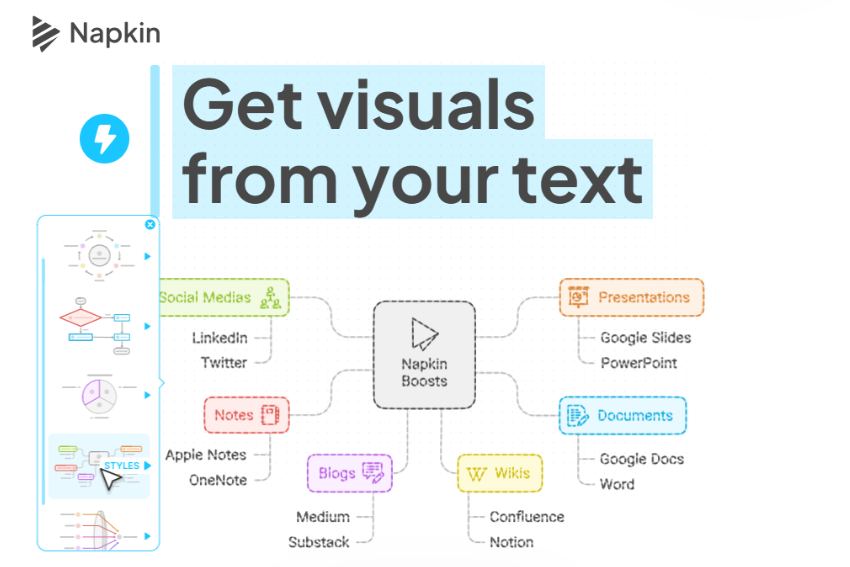
Napkin AI changes how creators turn rough ideas into professional graphics without spending hours inside complex design software.
If you write online articles, build pitch decks, or post daily on social media platforms, you already know the pain of visual content creation. You write a compelling piece of content, but then your momentum hits a hard wall. You need a flowchart, an infographic, or a quick breakdown chart to keep target readers engaged on the page. Tools like Photoshop, Illustrator, and Canva demand significant time, continuous manual effort, and technical design skills that you simply do not have in a fast-paced publishing environment.
This smart platform bridges that massive creative gap by turning plain written copy into clear, fully customizable visuals almost instantly. By eliminating the heavy friction of design software, creators can publish richer content faster than ever before.
What is Napkin AI?
Napkin AI is an artificial intelligence platform designed to convert plain text into editable visual diagrams, flowcharts, mind maps, and infographics within seconds. It targets writers, marketers, and business professionals who need quick visual aids without design skills.
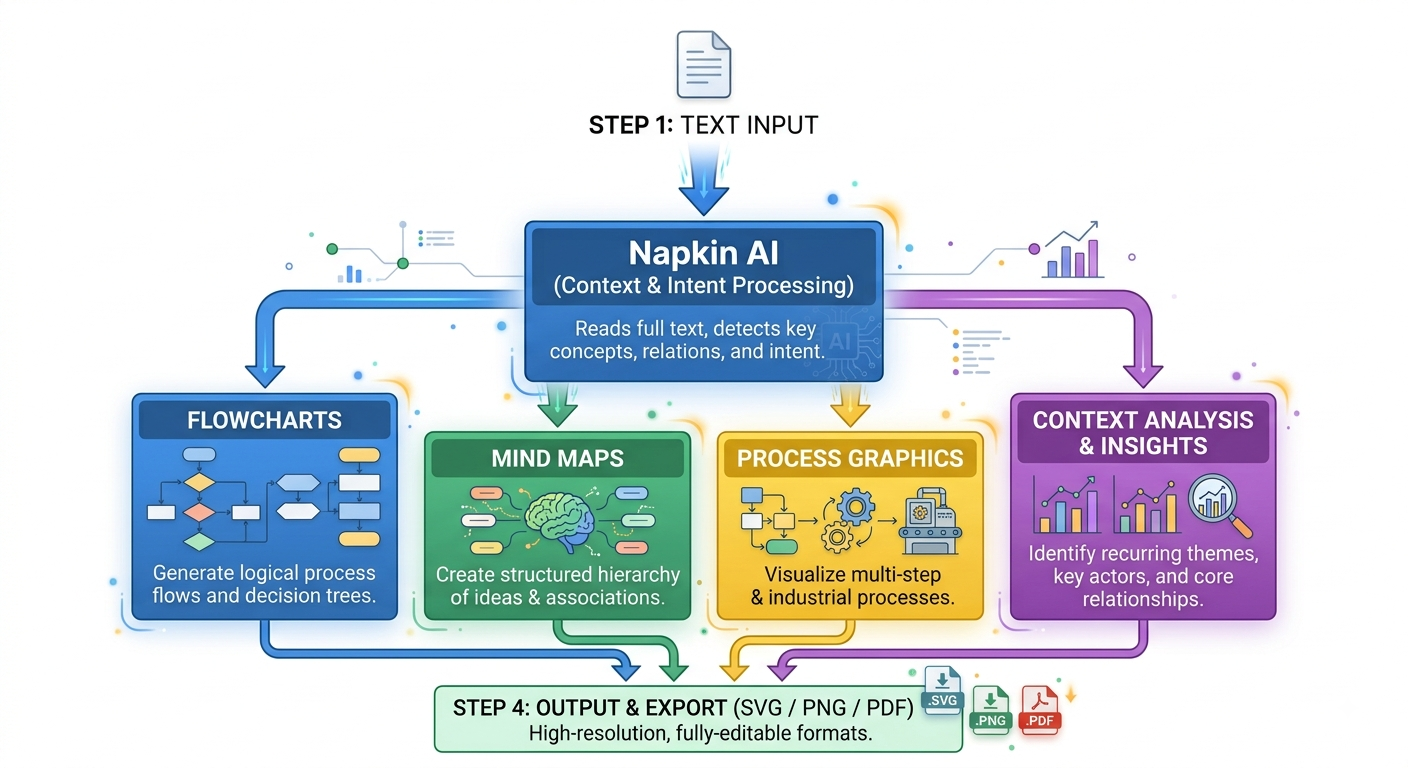
Instead of forcing you to prompt a standard graphic generator with vague image descriptions or confusing prompts, the system reads your actual written text directly inside the editor environment. It analyzes the context, picks out core relationships between sentence blocks, identifies key logical concepts, and suggests matching visual frameworks automatically. You get instant graphical clarity without spending hours drawing shapes, setting up custom grids, or moving text elements around manually.
Key Features That Drive Productivity
Instant Text-to-Visual Generation
Paste your complete draft directly into the digital workspace editor. Highlight any complex paragraph or bulleted list, click a single button, and watch the software generate multiple tailored visual layouts in real time. You pick the exact design framework that fits your narrative best and immediately embed it into your project work.
Built-in Deep Customization Tools
Auto-generated graphics often look generic, bland, or mismatched with existing content themes. This tool gives you granular control so you can easily adjust every design detail:
- Change complete color schemes to match your brand design palette and corporate style guidelines.
- Adjust icon styles, line weights, arrow shapes, and overall typography.
- Add, remove, split, or reorder individual nodes, connectors, and text steps.
- Swap graphic formats (shifting from linear workflows to radial charts or funnel diagrams) with a single click without losing your core text data or edits.
Professional Vector and Raster Exports
Download your completed graphics in high-resolution PNG format for quick web publishing, or grab SVG vector files for scalable, pixel-perfect editing inside advanced graphics software like Adobe Illustrator, Inkscape, or Figma. You can also export print-ready PDF files for internal corporate reports, client proposals, and executive slide decks.
How to Use Napkin AI: Step-by-Step
Step 1: Paste Your Content Draft
Open the workspace editor interface and drop in your raw article draft, structural outline, meeting transcript, or brief notes. You can write directly inside the app interface or copy and paste existing text directly from workspace platforms like Google Docs, Notion, or Microsoft Word.
Step 2: Select the Context Block
Highlight the specific section, paragraph, or bullet list you want to transform into a high-impact visual element. Look for text blocks that explain multi-step processes, compare distinct items side-by-side, highlight key data trends, or list important operational metrics.
Step 3: Choose a Visual Style
Click the auto-sparkle action icon right next to your highlighted text area. The engine instantly analyzes the underlying language structure and presents several custom visual formats, such as funnel diagrams, cycle charts, connection webs, or side-by-side comparison tables. Select the precise visual layout that communicates your core point to the reader best.
Step 4: Fine-Tune and Export
Tweak colors to fit your brand identity, select better vector icons from the built-in library, and fine-tune your main text labels for readability. Once you are completely satisfied with the final visual presentation, export your graphic asset in high-resolution PNG format for instant publishing, scalable SVG for vector manipulation, or clean PDF format for documentation.
Who Benefits Most from Napkin AI?
- Content Marketers & Bloggers: Keep web readers on your site pages much longer by breaking up dense paragraphs of text with scannable flowcharts, structural mind maps, and interactive process diagrams that improve visual storytelling.
- Educators & Course Creators: Turn dense, overwhelming lesson plans and training materials into clear visual summaries that help students digest, understand, and retain complex technical information much faster.
- Product Managers & Business Analysts: Turn rough meeting notes, system updates, user journey steps, and sprint plans into clear process maps without booking design hours or waiting on internal graphics teams.
- Social Media Managers: Turn core insights and takeaway quotes from long-form articles into punchy graphic carousels that stand out in crowded feeds and drive strong audience engagement across platforms like LinkedIn and X.
Napkin AI vs. Traditional Design Tools
| Feature / Need | Napkin AI | Canva | Figma |
|---|---|---|---|
| Creation Speed | Seconds (Text-Driven) | Minutes (Template-Based) | Hours (Manual Build) |
| Design Skills Needed | None Required | Low to Moderate | High Professional Skill |
| Context Awareness | Automatic (Reads Text) | Manual (Search Templates) | Manual (Build Elements) |
| Learning Curve | Flat (Instant Use) | Low (Drag & Drop) | Steep (Pro Software) |
| Best For | Quick diagrams & web graphics | General marketing assets | UI/UX & Complex Vector Design |
Tips for Getting the Best Visual Results
- Use Structured Input Text: Feed the system clean bullet lists, numbered steps, concise headings, or clear cause-and-effect sentences. Highly structured text inputs always yield cleaner, more accurate, and better-aligned diagram layouts on the first try.
- Focus on Core Concepts: Avoid highlighting massive, unstructured blocks of conversational prose or unnecessary background padding. Select focused sections that target clear data points, sequential workflows, structural hierarchies, or direct feature comparisons.
- Maintain Brand Consistency: Save your primary brand color palettes, primary font combinations, and visual preferences inside the app workspace so every single generated graphic seamlessly matches your corporate identity and blog publication guidelines.
Final Thoughts
Adding engaging visual elements to your published digital content is no longer an optional tactic if you want to capture audience attention, maintain high search engine rankings, secure top featured snippet spots, and deliver clear visual communication. Napkin AI eliminates the traditional technical friction between writing text copy and designing custom graphics, empowering you to turn plain written ideas into crisp, high-quality visual assets as fast as you type your thoughts.