










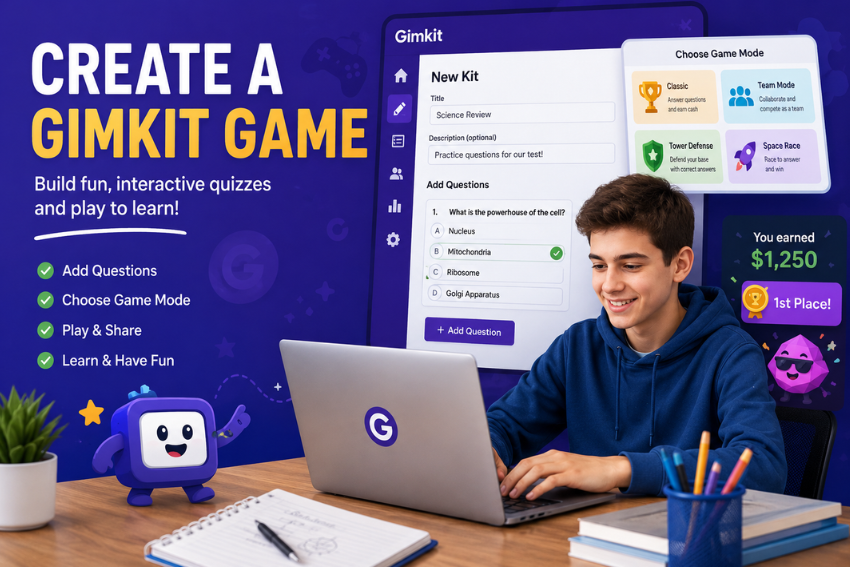
Make studying more interactive, engaging, and fun by creating a Gimkit Game. Use Gimkit to game up and play quizzes for an upcoming quiz, to review classroom lessons, or to challenge classmates!Game up and play quizzes for an upcoming quiz, review classroom lessons, or challenge classmates, all in a fun way!
Students are often under the impression that only teachers can make games on Gimkit. Advanced classroom management features are available to the teacher, but in many cases, students are able to make their own sets of question sets. You can create your own sets of questions and use them for your own studies and/or class use, depending on your account type and your teacher’s preferences.
This guide will show you exactly how to make a Gimkit game as a student, what you must have before starting to create a game, and how to make a quiz from scratch. You will also get practical tips which will help you make your game more interesting and helpful to learn.
What Is Gimkit?
Gimkit is an educational learning platform that converts quizzes into an interactive game. Students do not receive questions as multiple choice, but rather receive virtual currency for each correct answer and use that to upgrade themselves for better performance in the game.
Gimkit has become a staple in classrooms because it’s a fun and effective way to learn. Students remain engaged as they revisit the following topics:
- Math
- Science
- English
- History
- Geography
- Foreign languages
- Computer science
- Business studies
Unlike traditional quiz platforms, Gimkit rewards both accuracy and strategy. Players decide how to spend their earnings, making every session feel different.
Why Students Love Gimkit
Students enjoy Gimkit because it offers much more than a standard online quiz.
Some of the biggest advantages include:
- Interactive gameplay that keeps learning interesting.
- Instant feedback after every question.
- A variety of exciting game modes.
- Self-paced study sessions.
- Easy review before exams.
- Better knowledge retention through repetition.
Creating your own game also helps reinforce what you have learned because writing questions requires a deeper understanding of the topic.
Can Students Create a Gimkit Game?
Yes, students can create a Gimkit game in many cases.
The number of features you have access to will vary by account type and if your teacher has invited you to a class. Some schools give their students accounts that allow them to create sets of quizzes, while others may disallow some features.
Generally, students can:
- Create their own study kits.
- Add custom questions.
- Edit existing question sets they own.
- Practice independently.
- Share quiz sets when permissions allow.
However, it may require a teacher account or subscription to access premium features, or to host live classroom games.
If you don’t have the “Create a new kit” option, check with your teacher to see if students are allowed to create their own kits.
What You Need Before Creating a Gimkit Game
Before you begin, make sure you have everything ready. Preparing these items in advance will make the process much faster.
A Gimkit Account
The first requirement is a Gimkit account.
You can sign up using:
- Google account
- Microsoft account
- Email address
Many schools allow students to sign in using their school provided Google account.
Internet Connection
A reliable internet connection prevents interruptions while creating or editing your quiz.
Study Material
Gather your learning resources before writing questions.
Examples include:
- Classroom notes
- Textbooks
- Study guides
- Homework assignments
- Teacher presentations
Using accurate study material helps ensure every question is correct.
A Clear Topic
Choose one topic instead of mixing unrelated subjects.
Good examples include:
- Photosynthesis
- American Revolution
- Algebra equations
- Parts of speech
- World capitals
- Human body systems
A focused quiz makes studying easier and improves learning outcomes.
Step by Step Guide to Create a Gimkit Game as a Student
Follow these steps to build your first Gimkit game.
Step 1: Sign In to Your Gimkit Account
Open your preferred web browser and visit the Gimkit website. Sign in using your school account or your personal account.
After logging in, you will arrive at your dashboard, where you can access your existing kits and available learning activities.
Tip
If this is your first time using Gimkit, spend a few minutes exploring the dashboard so you become familiar with the available options.
Step 2: Locate the Create Option
From your dashboard, look for the Create button.
Depending on updates to the platform, the button may appear in different locations, but it is usually easy to find from the main dashboard.
Selecting this option begins the process of building your own quiz.
What Happens Next?
Once you select Create, Gimkit asks for basic information about your new quiz, including:
- Kit title
- Subject
- Optional description
Choose a title that clearly describes your topic.
For example:
- Cell Structure Review
- US History Chapter 5
- Geometry Practice
- Spanish Vocabulary Unit 3
- Chemistry Elements Quiz
A descriptive title helps you locate your quiz later and makes it easier to organize multiple study sets.
Step 3: Name Your Kit
The title is the first thing you and others will see.
Choose a name that is:
- Short
- Descriptive
- Easy to recognize
- Related to the lesson
Instead of using a generic title like Science Quiz, choose something more specific such as Human Digestive System Review.
Specific titles make it easier to identify the correct quiz, especially if you create many study sets throughout the school year.
Step 4: Select the Appropriate Subject
Some versions of Gimkit allow you to organize your quiz by subject.
Choose the category that best matches your lesson.
Examples include:
- Mathematics
- Science
- English
- History
- Geography
- Languages
Proper organization keeps your learning materials neat and easier to manage.
Step 5: Add Questions to Your Gimkit Game
Now it’s time to build the heart of your quiz by adding questions. Well written questions make your game more enjoyable and help reinforce what you’ve learned.
Select the option to add a new question. Enter the question, provide the answer choices, and mark the correct answer before saving it.
For the best learning experience:
- Keep questions clear and easy to understand.
- Focus on one concept per question.
- Avoid unnecessary wording.
- Double check facts before saving.
- Use proper spelling and grammar.
Example
Question: What is the largest planet in our solar system?
Answer Choices:
- Earth
- Mars
- Jupiter
- Venus
Correct Answer: Jupiter
Continue adding questions until your study kit covers the entire lesson or chapter.
Step 6: Review and Edit Your Questions
Before using your game, review every question carefully.
Look for:
- Spelling mistakes
- Grammar errors
- Incorrect answer choices
- Duplicate questions
- Confusing wording
Editing before playing improves accuracy and creates a better learning experience for everyone.
Reading each question aloud can also help you identify awkward wording that may confuse players.
Step 7: Save Your Kit
After adding all of your questions, save your work.
Your kit will appear in your dashboard, where you can edit it later, add more questions, or use it for future study sessions.
Many students continue updating the same kit throughout the school year as they learn new topics.
Step 8: Practice Your Quiz
One of the biggest advantages of creating your own Gimkit game is that you can use it to review material before quizzes and exams.
Practicing regularly helps you:
- Identify weak areas.
- Improve memory through repetition.
- Increase confidence before tests.
- Learn at your own pace.
Even short practice sessions can make a noticeable difference over time.
Tips for Creating an Engaging Gimkit Game
A good quiz does more than test facts. It encourages critical thinking and keeps players interested from start to finish. Here are some proven tips.
- Write Clear Questions: Avoid overly complicated sentences. Simple wording allows players to focus on the subject instead of trying to understand the question itself.
- Mix Easy and Difficult Questions Including different difficulty levels keeps the game balanced. For example, begin with simple review questions, add moderate questions in the middle and finish with more challenging concepts. This approach helps maintain motivation while gradually increasing the challenge.
- Avoid Trick Questions: Questions designed to confuse players often create frustration instead of learning. Make every question fair and directly related to your study material.
- Cover the Entire Lesson: Instead of asking several questions about one small topic, spread your questions across the entire chapter. A balanced quiz improves overall knowledge retention.
- Keep Answer Choices Realistic: Incorrect answers should be believable but clearly wrong for students who understand the topic. Obvious incorrect options reduce the educational value of the quiz.
Common Mistakes Students Should Avoid
Many first-time creators make similar mistakes. Avoiding these issues will improve the quality of your game.
- Writing Questions That Are Too Long: Long paragraphs can overwhelm players. Keep each question concise while including all necessary information.
- Forgetting to Verify Answers: Always confirm that the correct answer is actually correct. An inaccurate answer can confuse everyone who plays your quiz.
- Adding Too Few Questions: A game with only five questions ends quickly and offers limited review. Aim for enough questions to cover the lesson thoroughly. For most classroom topics, 20 to 40 questions provide a solid review.
- Ignoring Grammar: Small grammar mistakes may seem unimportant, but they reduce professionalism and sometimes change the meaning of a question. Always proofread before saving your kit.
- Using Repetitive Questions: Avoid asking the same concept multiple times using slightly different wording. Instead, test different parts of the lesson.
Can You Share Your Gimkit Game?
Sharing options depend on your account type and your teacher’s classroom settings. If sharing is available, you may be able to:
- Share your kit with classmates.
- Use it for group study sessions.
- Collaborate on classroom activities.
- Review together before exams.
If sharing is disabled, you can still use your quiz for personal practice.
Why Creating Your Own Gimkit Game Improves Learning
Writing quiz questions requires active learning rather than passive reading. As you create questions, you naturally:
- Read information more carefully.
- Think about important concepts.
- Identify key vocabulary.
- Strengthen long term memory.
- Recognize areas that need additional study.
Educational research consistently shows that creating study materials improves knowledge retention because students actively process information instead of simply reviewing notes.
Final Thoughts
When you are engaged in the learning process, learning will work well. Create your own Gimkit game to help you practice, think critically about the material, and organize.
The procedure is simple. Sign in to your account, write down questions that have real meaning, review their work and practice often to make a new kit. As you continue to add quizzes to your library, it can serve as a helpful study resource for all your subjects.
If you’re studying for a weekly quiz, a midterm or final exam, you can use the time to make a game on Gimkit and then review the material through an enjoyable game. The more carefully you plan your quizzes, the more self-assured you will be when it’s time to show them.
Frequently Asked Questions
Can students create a Gimkit game?
Yes. Many students can create their own quiz kits, although available features depend on their account and school settings.
How many questions should a Gimkit game include?
A good study kit usually contains between 20 and 40 questions. Larger units may require more questions for complete coverage.
Can I edit my quiz after saving it?
Yes. You can return to your saved kit and update questions, answers, or titles whenever needed.
Do I need a paid account?
Many basic features are available with a free account, while some advanced features require a subscription.
Can I use images in my questions?
Depending on your account features and current platform capabilities, images may be available for certain question types.
Can I create games for personal studying?
Absolutely. Many students create private quiz kits to prepare for homework, quizzes, and final exams.
What subjects work best with Gimkit?
Almost every school subject works well, including math, science, history, English, geography, languages, and computer science.
How often should I update my quiz?
Review your kit after each lesson and add new questions as your class progresses through the curriculum.