









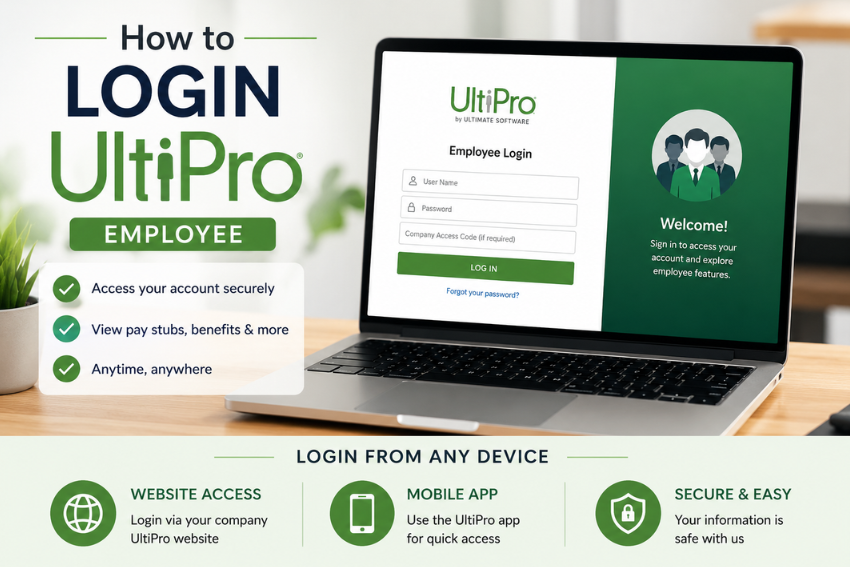
Login Ultipro is one of the most searched employee portal topics because thousands of employees work remotely and need secure access to payroll, schedules, benefits, and HR information from outside the office.
What many employees do not realize is that Ultipro has evolved into UKG Pro, but many organizations still refer to the platform by its original name. If your company says UKG while your HR emails still mention Ultipro, both may point to the same employee environment depending on your employer setup.
This guide explains exactly how employees can access Ultipro from home using a desktop browser, mobile browser, and mobile application.
Understanding Ultipro and UKG Pro
Ultipro, now commonly known as UKG Pro, is a cloud based Human Capital Management platform used by organizations to manage employee operations including payroll, attendance, benefits, HR workflows, tax documents, and workforce management.
Employees use the system for tasks such as:
- Viewing pay statements
- Downloading tax documents
- Updating personal details
- Managing direct deposit
- Checking schedules
- Requesting leave
- Reviewing benefits information
Because the system runs in the cloud, employees can usually access it from home if the employer enables remote login.
What You Need Before You Login Ultipro
Before opening the login page, prepare a few essentials. This avoids repeated login failures.
Required Login Credentials
Most employers provide:
- Company specific Ultipro or UKG URL
- Username
- Password
- Company access code if required
- Multi factor authentication method
Some organizations also enable Single Sign On authentication instead of traditional username and password login.
Device and Internet Requirements
For smoother access, make sure you have:
| Requirement | Recommendation |
|---|---|
| Browser | Chrome, Edge, Safari |
| Mobile OS | Updated Android or iPhone |
| Internet | Stable broadband or mobile data |
| Security | Enable device lock |
Avoid public WiFi when accessing payroll information.
How to Login UltiPro on the Website (Desktop or Laptop)
The web portal gives you access to the full suite of features—pay history, tax documents, benefits, account settings, and more. Here is the step-by-step process.
Step 1: Find Your Company’s Correct Login Page
Start with the portal link your employer provided. This might be:
- A company-branded employee portal
- A direct UltiPro or UKG web address
- An SSO page connected to Microsoft, Okta, or another identity provider
If you are guessing the web address from memory, stop right there. That is how people end up on the wrong page and spiral into unnecessary frustration.
Step 2: Enter Your Username
Type your username into the designated field. Remember, your username might look different from a coworker’s. Common formats include your full work email, a network ID, or an employee number.
Step 3: Enter Your Password
Type your current password carefully. Pay attention to case sensitivity—UltiPro passwords are case-sensitive.
Step 4: Complete SSO or Multi-Factor Authentication
If your company uses single sign-on, you will be redirected to your SSO provider’s page to authenticate. If MFA is enabled, enter the verification code sent to your phone or authenticator app.
Step 5: Click Login
After entering your details, click the “Login” or “Sign In” button. You should land on your employee dashboard, where you can access payroll, benefits, time-off requests, and personal information.
How to Login UltiPro on the Mobile App
The UltiPro mobile app—now listed as UKG Pro in app stores—gives you 24/7 access to your HR, payroll, and benefits information right from your phone. It is free to download and works on both iPhone and Android devices.
Step 1: Download the Right App
- iPhone users: Go to the Apple App Store and search for “UKG Pro” or “UltiPro.”
- Android users: Open the Google Play Store and search for “UKG Pro” or “UltiPro.”
Make sure you are downloading the official app from UKG. The app supports devices running iOS 10.3 or later and Android 5 or later.
Step 2: Enter Your Company Access Code
This is the most critical step. The company access code is a unique code configured by your HR department. You will need this code to access the app.
- Enter the code exactly as provided. Some codes are case-sensitive, while others are not.
- If you enter the wrong code, you can remove it by selecting the “X” next to the current code on the welcome screen.
Step 3: Choose Your Login Method
After entering the access code, you will see two options:
- Direct Login: Enter your username and password manually.
- Single Sign-On: Tap “Sign In with Corporate Credentials” and follow the prompts to authenticate through your company’s SSO provider.
Step 4: Enable Touch ID or Fingerprint Access (Optional)
The first time you log in, the app may ask you to register for Touch ID or fingerprint validation. Enabling this feature allows you to bypass the full login process on future attempts—a huge time-saver.
Step 5: Start Using the App
Once logged in, you can view pay statements, request PTO, check your schedule, search the employee directory, and more. Note that some functions—like entering time on a timesheet—may still require the desktop version.
Common Login Issues and How to Fix Them
Even with the right steps, things can go wrong. Here are the most common problems and their solutions.
Incorrect Credentials
Double-check your username and password. Passwords are case-sensitive, so ensure Caps Lock is off. If you are unsure about your username, contact HR rather than guessing.
Forgotten Password
Most login pages offer a “Forgot Password?” link. Click it and follow the prompts to reset your credentials. You will typically receive instructions via your registered email or phone number.
Important: If your password is reset, you must sign in using a web browser or computer first. You cannot reset your password using the mobile app.
Account Lockout
After several failed login attempts, your account may be temporarily locked. In this case, you will need to contact your HR department or payroll administrator to unlock it.
Browser Issues
If the website is not loading properly, try clearing your browser’s cache and cookies, or switch to a different browser altogether.
“Company Access Code” Not Working
Verify that you are entering the correct code. Contact your HR department if you are unsure—they configure this code specifically for your organization.
Mobile App Not Updating
The UltiPro mobile app receives monthly updates. To check for updates:
- iPhone: Open the App Store, tap “Updates,” and search for UltiPro. If “Update” appears, tap it.
- Android: Open Google Play, select “My apps and games,” and tap “Update” next to the UltiPro app if available.
Running the latest version ensures you have the best enhancements and security fixes.
Pro Tips for a Smooth Login Experience
- Bookmark your login page. Once you find your company’s correct URL, save it as a bookmark. This saves time and prevents you from landing on the wrong page.
- Use the “Remember Me” feature. On trusted personal devices, check the “Remember me” box to avoid typing your credentials every time.
- Keep your app updated. Regular updates fix bugs and improve security.
- Secure your device. Since you are accessing sensitive employment data, ensure your phone or tablet has the latest operating system and a secure lock screen.
- Do not share your password. This seems obvious, but it is worth repeating. Sharing your credentials violates most company policies and puts your data at risk.
What to Do After You Login UltiPro Successfully
Once you are in, take a moment to explore the dashboard. Here are a few things you can do right away:
- View your pay stubs. Navigate to the Payroll section to see current and historical pay statements.
- Check your benefits. Review your current benefits plans and enrollment options under the Benefits tab.
- Request time off. Use the PTO request feature to submit time-off requests directly from the portal or app.
- Update personal information. Change your address, emergency contacts, or other personal details in the Profile section.
Final Thoughts
Logging into UltiPro from the comfort of your own home should not be a hassle. If you access the website on a computer or the mobile app on your cell phone, both are simple when you have the right resources. Be sure to have your credentials, use the right company-specific URL or access code, and if you get stuck, contact HR.
With the knowledge of how-to Login UltiPro, users will save time and money in troubleshooting and more time to work. Save it for posterity, and pass it on to a co-worker who may be facing similar login issues.